Connect over a decade of HFS research directly to your AI client in a few clicks. Ask questions and get answers grounded in HFS research, with citations, right in the AI tool you already use. Available now for Claude and ChatGPT; with Gemini support in beta.
Setup Time
~5 minutes
Supported Today
Claude · ChatGPT · Gemini (Beta)
Endpoint
mcp.hfsresearch.com
Authentication
OAuth 2.1 + PKCE
This feature is available exclusively to active HFS Research members
You must have an active membership to connect HFS Research's MCP to an AI client. Please reach out to our sales team to discuss options.
Confirm these prerequisites, then setting up the connection only requires a couple of clicks.
1
Active HFS membership
You must have an active Strategic or Elite HFS Research membership.
2
MCP access enabled
Your IT administrator must enable MCP access company-wide before your AI tool profile can access the HFS MCP.
3
Supported AI client
Use the most recent version of Claude, which supports MCP connectors. ChatGPT MCP support is currently in beta, and Gemini support is planned for future releases.
2. Step-by-Step Setup
Choose your AI client and follow along.
Pick the platform you use most. Each guide walks through the connection flow with screenshots and provides the exact endpoint URL and what to expect from the OAuth login.
Claude
ChatGPT
Claude
ⓘ
Claude on the Desktop (claude.ai) — recommended
The instructions for the Claude Desktop application config file follow at the bottom of the section.
1
Click on the Customize option on the top left-hand side.

Claude.ai → Profile avatar → Settings
2
In the Customize window, click on Connectors, then select the + and choose “Add custom connector”
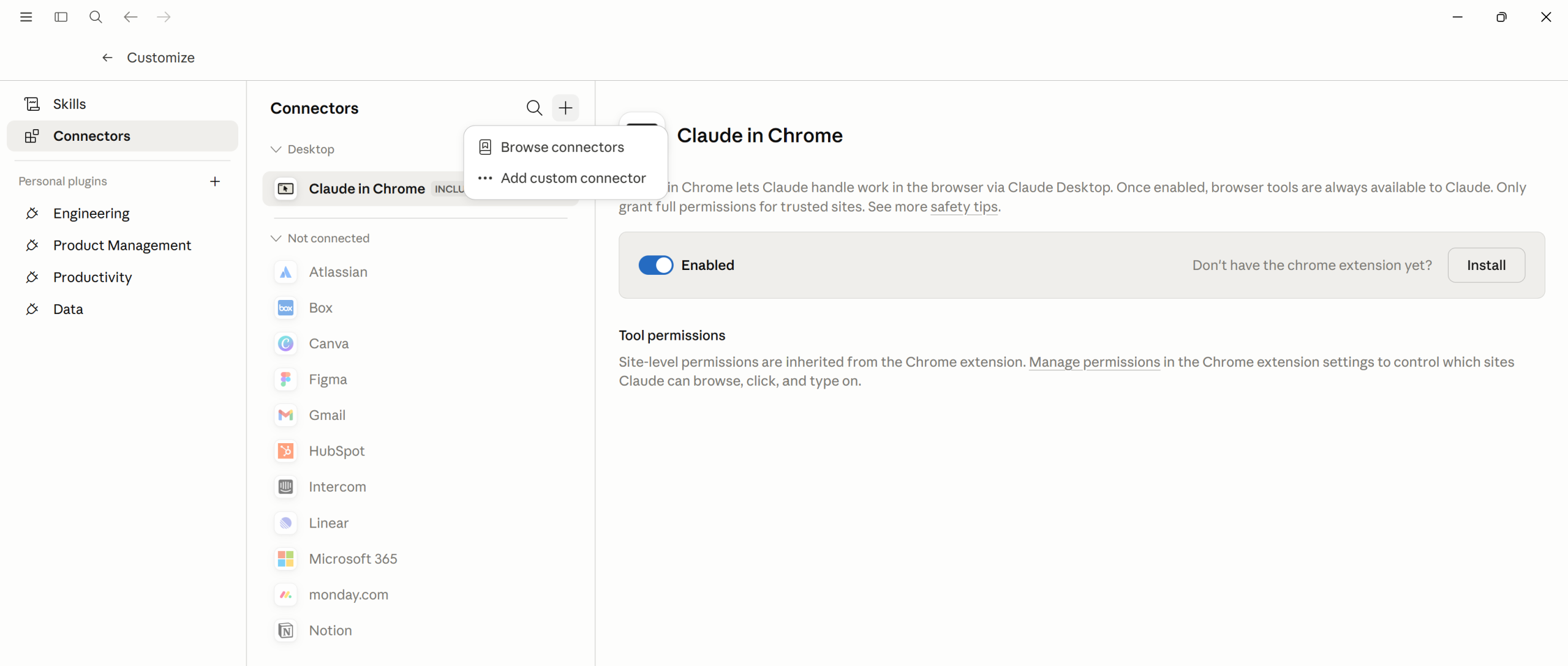
If you don’t see this option, make sure that you have either a Pro, Team, or Enterprise plan as they support MCP integration.
Custom Connectors require your admin approval on Team and Enterprise plans. Check with your Claude workspace owner if you aren’t able to complete the process.
If your admin has already enabled the connector, please search for HFS Research in the Browse connectors section.
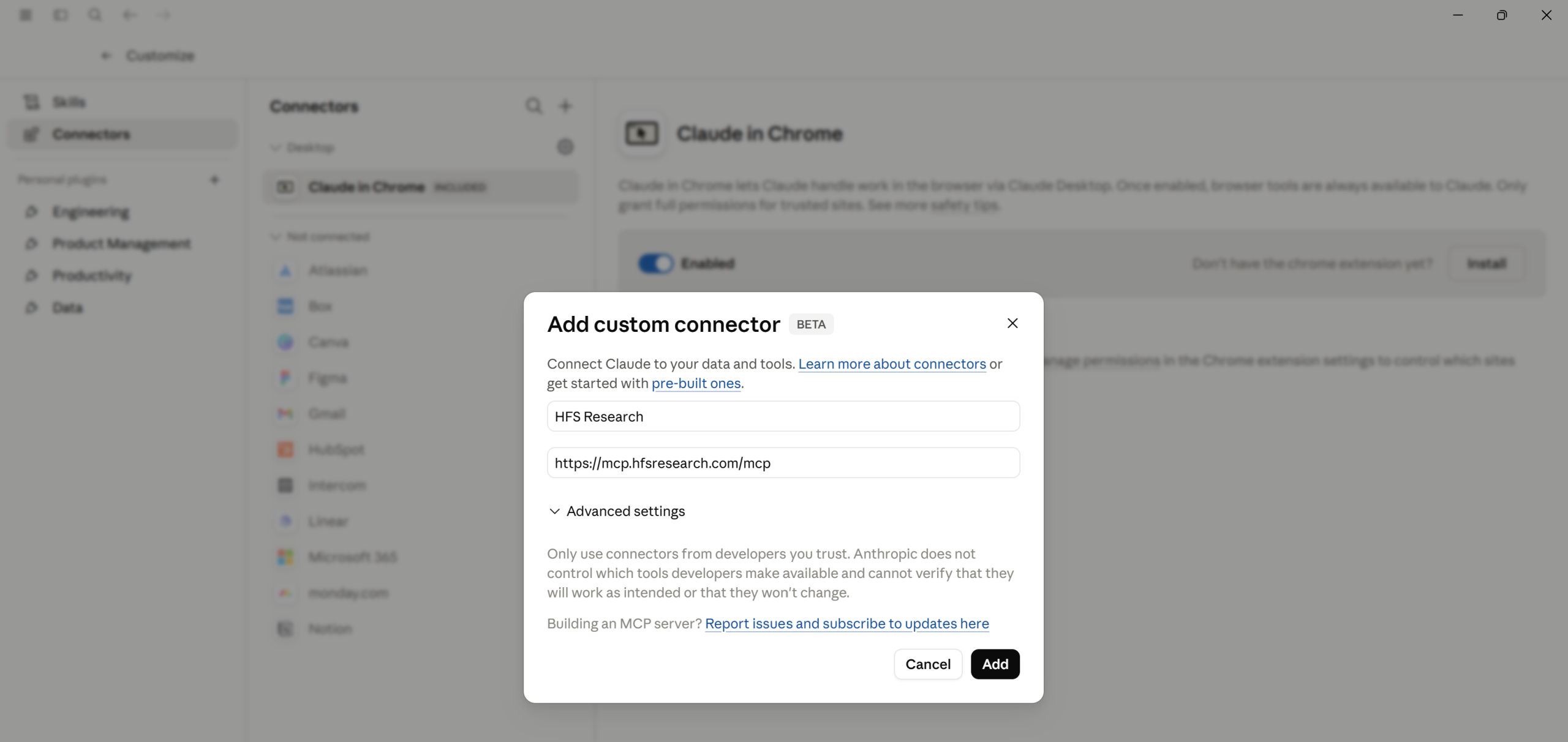
In the “Add custom connector” window, fill in two fields as below. You can copy the URL straight from the code block provided.
MCP Endpoint URL
https://mcp.hfsresearch.com/mcp
Dialog filled in — leave Advanced settings collapsed, click Add
4
Click Add. Claude will open a new browser tab and redirect you to the HFS MCP login page. Enter your HFS login credentials to sign in.

✓
SSO already configured? If your organisation federates SSO into hfsresearch.com today (Okta, Azure AD, Ping, etc.), the same federation applies here. You’ll be signed in silently without needing to re-enter a password.
HFS sign-in page (dev.hfsresearch.com/hfs-mcp-login) — enter your credentials
5
Return to Claude: After signing in, you’ll be redirected straight back to Claude. The HFS Research connector will now appear in the Connectors menu. When you click on the connector your will be able to adjust permissions.
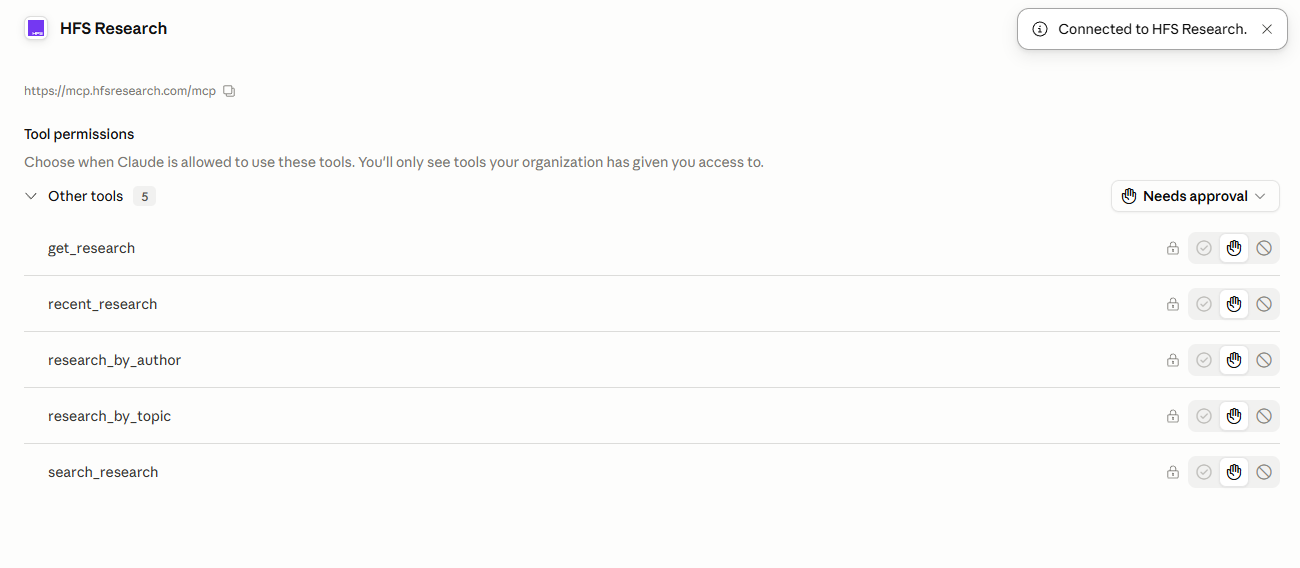
Connected to HFS Research — tool permissions visible in Claude.ai Connectors
6
Confirm HFS Research is switched on: Open a new Chat. Click the + icon to the bottom left of the chat box, hover over “Connectors”, and check that the HFS Research toggle is switched on. If it’s off, switch it on so Claude can use it for future questions about research on our website.
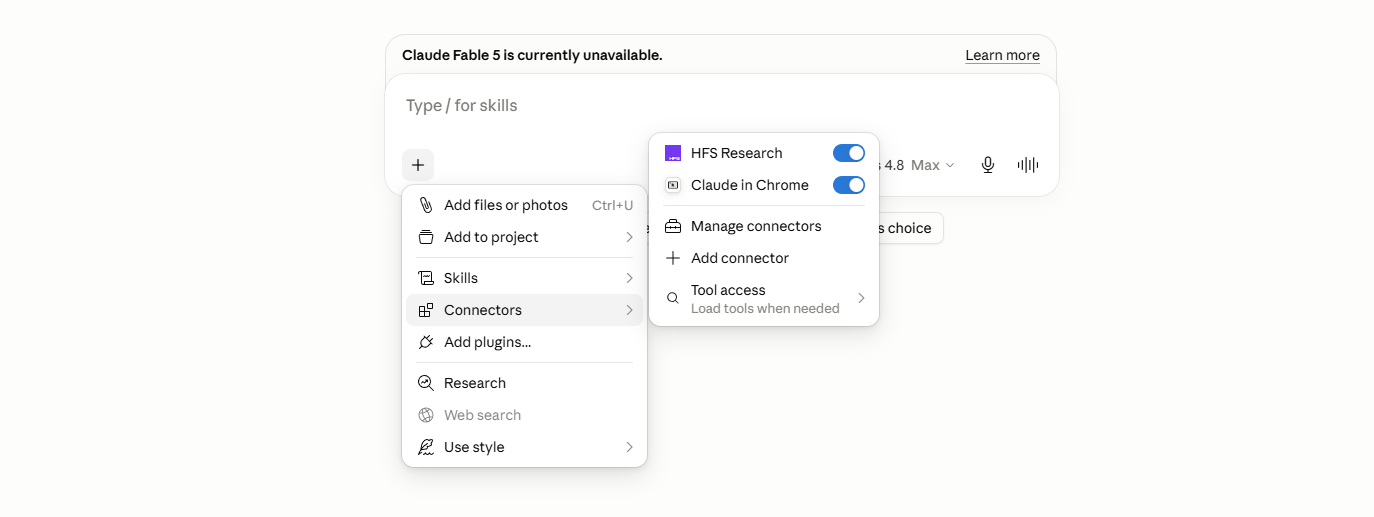
New chat → + → Connectors → confirm the HFS Research toggle is on
7
Ask your first question
Start a new conversation with Claude. The HFS Research tool icon will appear in the message bar. Ask any business question and Claude will route relevant queries through HFS, and you’ll see citation links back to the source PDF on hfsresearch.com directly inside the response.
If the citation does not appear, ask Claude to start providing them whenever you ask a questions that is directed to HFS Research.
ChatGPT
ⓘ
ChatGPT custom connectors (Beta)
OpenAI’s support for remote MCP servers is rolling out across Plus, Team, and Enterprise plans. Exact menu paths vary by ChatGPT release channel and account type. Custom connectors on Team and Enterprise plans typically require workspace admin approval; confirm with your IT team before starting
1
Sign in to your ChatGPT portal. Click your profile avatar in the bottom-left and choose Settings.
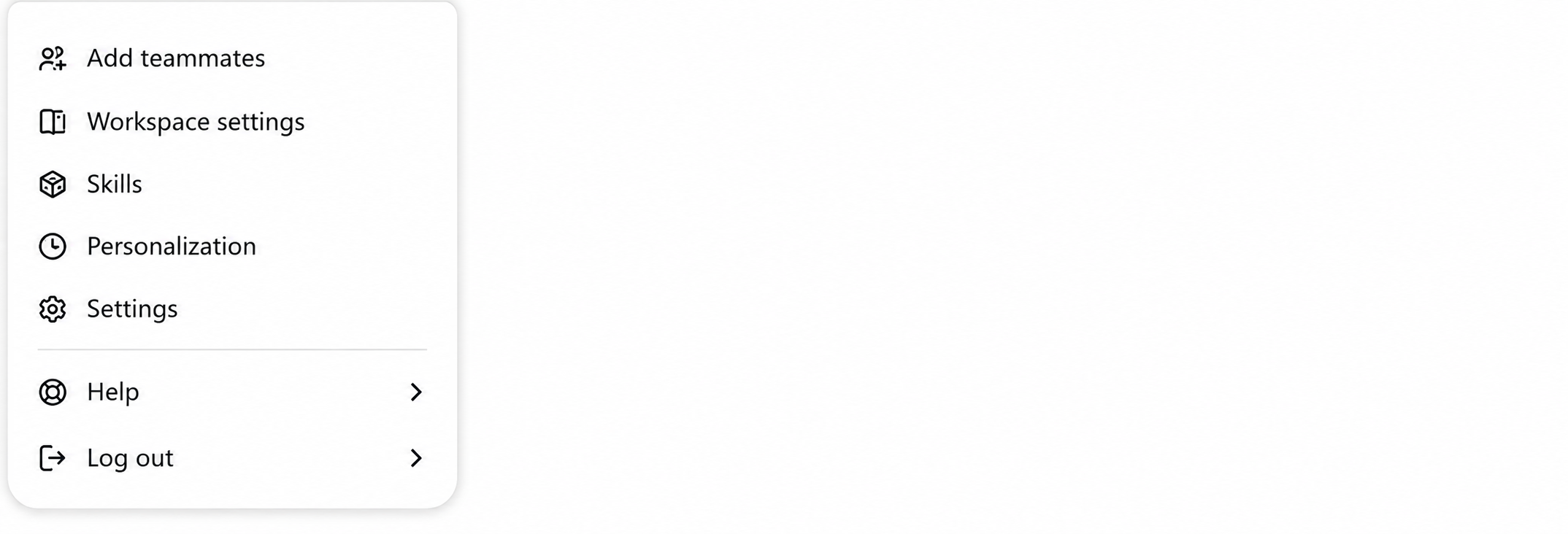
Go to ChatGPT Settings
2
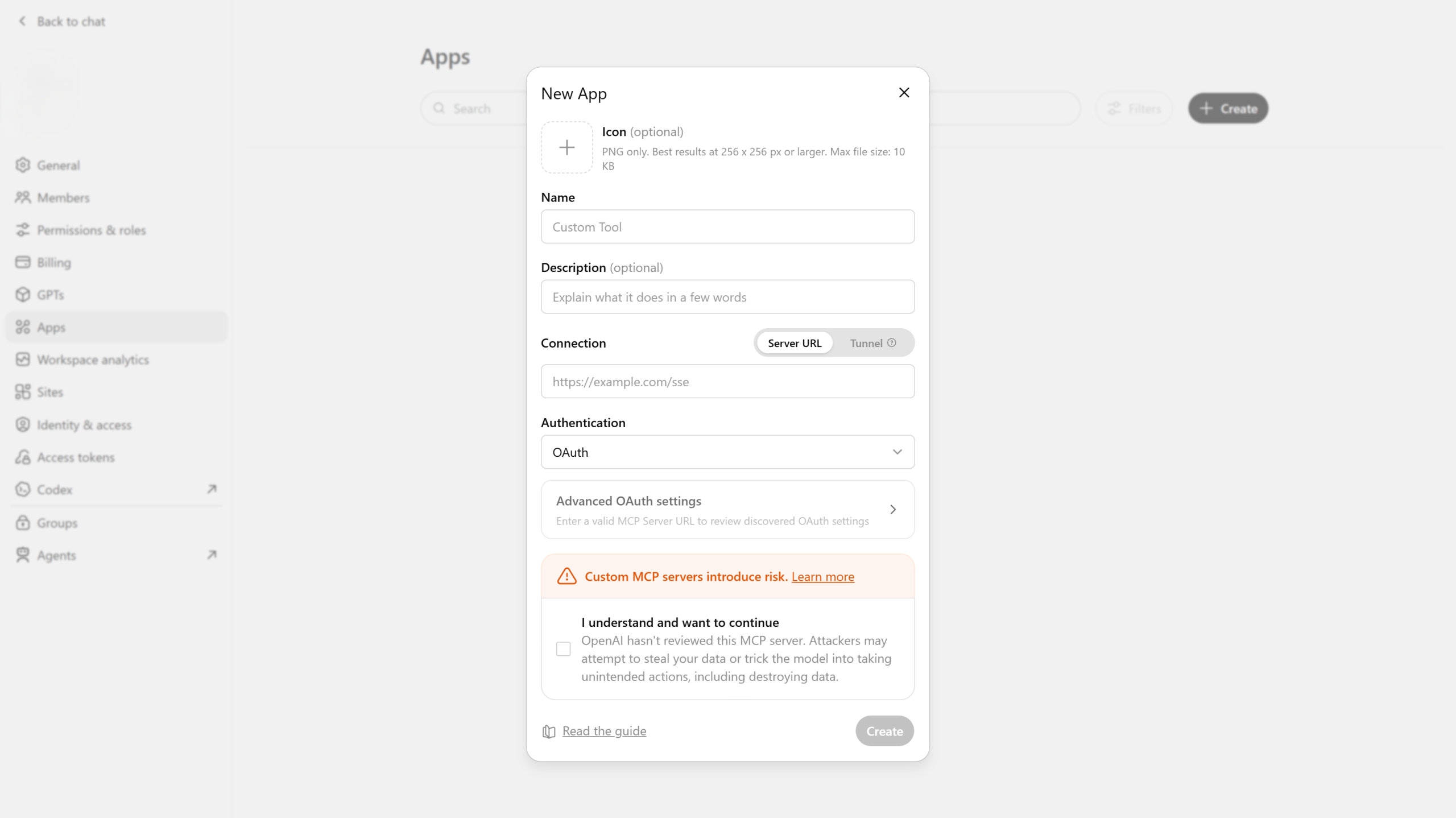
Create a New App: In your ChatGPT workspace’s Apps panel (Team and Enterprise admins use the path chatgpt.com/admin/apps), click + Create. In the New App dialog, fill in:
Name:HFS Research (or your preferred label)
Connection: copy the below MCP Server URL and paste in the connection textbox
Authentication: select OAuth
Tick the “I understand and want to continue” checkbox (acknowledging the standard MCP server risk notice)
Click Create
MCP Server URL
https://mcp.hfsresearch.com/mcp
ChatGPT admin → Apps → + Create → fill in Name, Server URL, Authentication = OAuth
3
When you hit Create, ChatGPT doesn’t switch the app on right away — it saves it as a draft. At this point only you (the admin who created it) can see it. Your teammates won’t find the HFS Research tool in their chats yet.
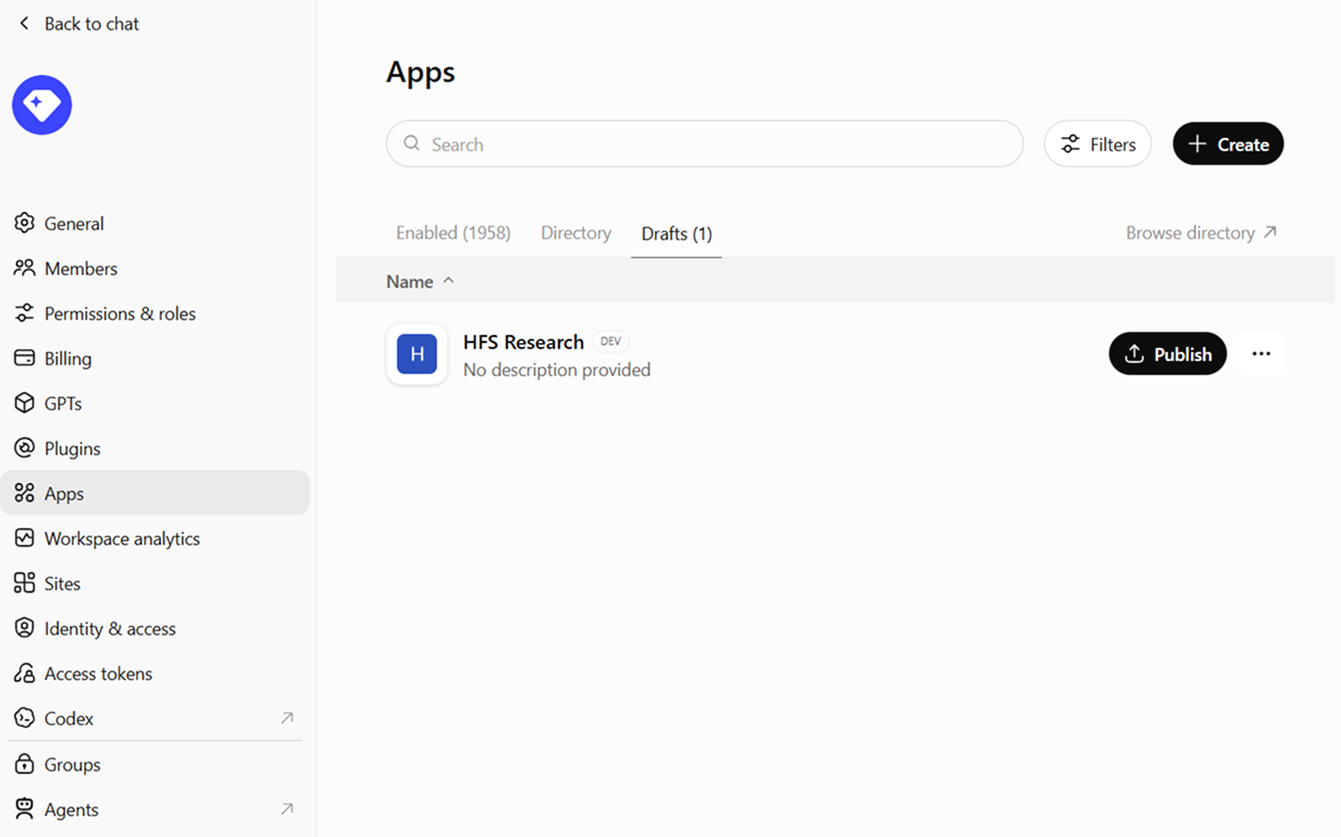
HFS Research App saves it as a draft
Publish it to your workspace (Team and Enterprise admins only). Go back to Settings → Apps and open HFS Research — it’ll have a Draft label. Click Publish button. Before it goes live, ChatGPT asks you to review two standard risk notices:
Potential risk: Unauthorized data access — confirms you understand the connector can access data through your HFS account. Tick to acknowledge.
Potential risk: Malicious app — the standard notice for any outside connector. Since this is the official HFS endpoint you entered, tick to acknowledge.
Once both are acknowledged, confirm and the label flips from Draft to Published. Your team can now see the tool — they may just need to refresh ChatGPT once.
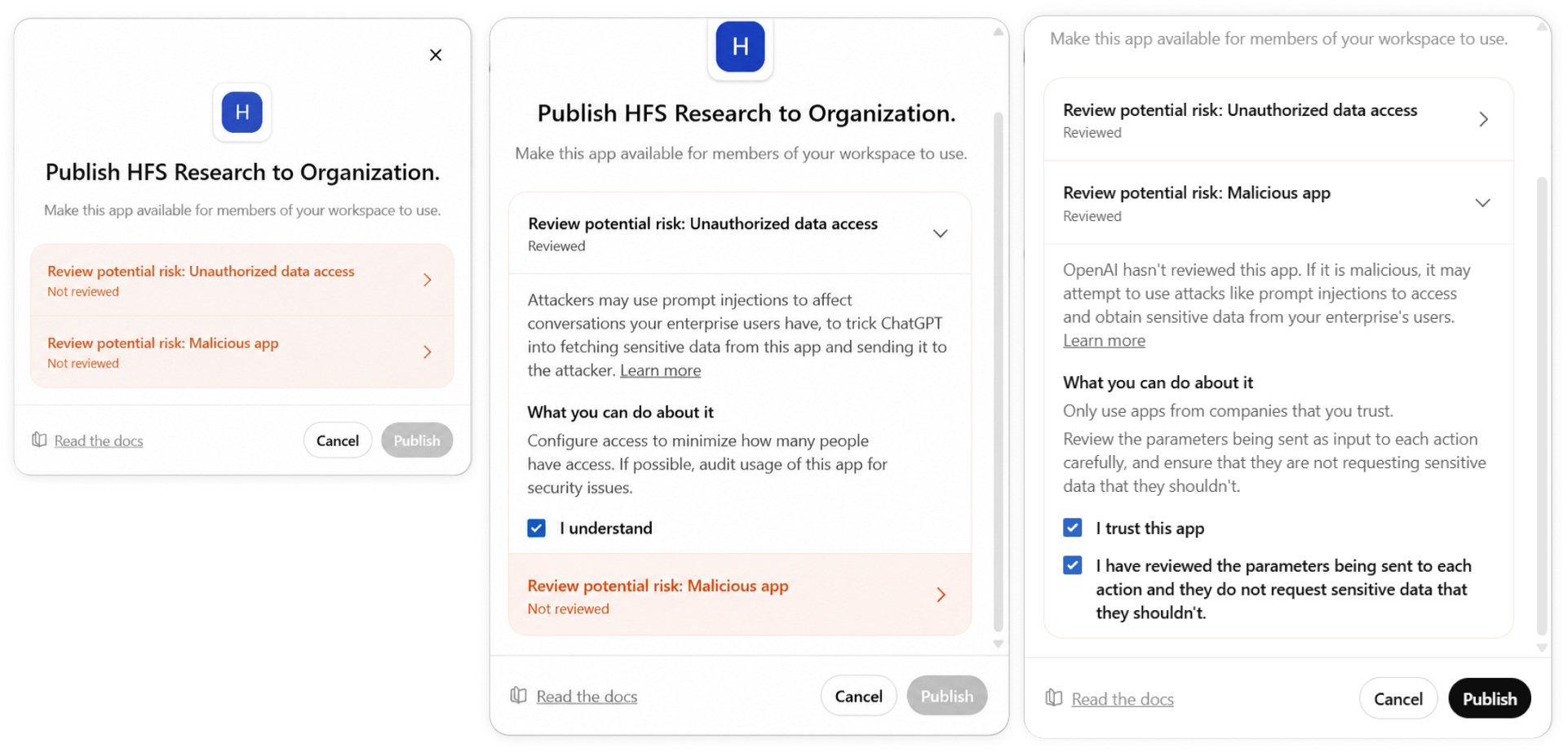
Go back to Settings → Apps and open HFS Research → Click Publish button
4
Sign in to HFS: Once you’ve published, the connector is ready to use right away. The first time you (or any teammate) actually uses it, ChatGPT opens a new browser tab and takes you to the HFS sign-in page.

✓
SSO already configured? If your organisation federates SSO into hfsresearch.com today (Okta, Azure AD, Ping, etc.), the same federation applies here. You’ll be signed in silently without needing to re-enter a password.
Sign in with your HFS Research member credentials (or your corporate SSO if configured).
Review and approve the consent screen — the connector requests read-only access to HFS research excerpts.
HFS sign-in page (hfsresearch.com/hfs-mcp-login) — enter your credentials email
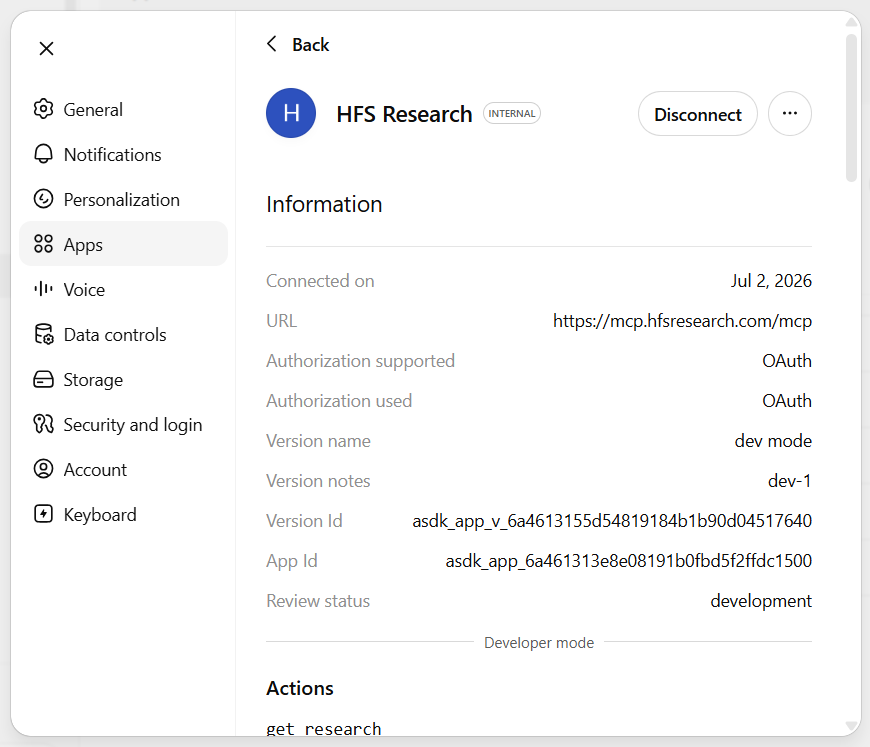
You’ll be returned to ChatGPT with the connector now listed as Connected.
“HFS-Research is now connected” — Preferences, MCP server URL, and tool actions visible
5
Ask your first question
Start a new conversation with ChatGPT. The HFS Research tool icon will appear in the message bar. Ask any business question and ChatGPT will route relevant queries through HFS, and you’ll see citation links back to the source PDF on hfsresearch.com directly inside the response.
If the citation does not appear, ask ChatGPT to start providing them whenever you ask a questions that is directed to HFS Research.
3. Troubleshooting
When something doesn't quite work.
The connector fails fast and tells you why. Here are the most common situations and what they mean.
401 · Session superseded
“Please reconnect HFS Research”
Someone signed in with your credentials on another device or AI client. HFS uses last-login-wins enforcement, so your previous session was invalidated. (Note: switching between Claude and ChatGPT on the same account also triggers this — they take turns.) Reconnect from your AI client settings and sign in again. If you didn't authorize that sign-in, change your HFS password immediately.
403 · Access denied
“MCP access is not enabled for this user”
Your HFS account is valid, but you don't currently have MCP access — either the MCP access toggle on your WordPress profile isn't enabled, or your HFS membership has lapsed/expired. Ask your HFS administrator to enable the MCP access checkbox, or confirm your membership is active.
DCR · Registration fails
“Couldn't register with the sign-in service”
The AI client attempted dynamic registration but the request was blocked or returned an unexpected response.
This is commonly caused by Cloudflare bot protection on OAuth endpoints.
URL · Add fails
“Failed to add custom connector”
This is usually caused by an incorrect endpoint URL.
https://mcp.hfsresearch.com/mcp
Ensure there are no extra spaces, missing paths, or trailing slashes.
Empty · No results
“No research found for that query”
The research index returned no matches for your query.
Try broader keywords or alternative search phrases.
401 · TOKEN INVALID
“Token signature is invalid”
Your AI client connected to the wrong environment (e.g. a dev vs production sign-in), so the token it holds doesn't match the server's signing key. Fully remove and re-add the connector so it re-registers against https://mcp.hfsresearch.com/mcp, then sign in again.
4. Frequently Asked
Questions, answered.
Do I need a paid HFS membership to use the connector?
+
Yes. The HFS MCP connector is only available to active HFS Research memberships whose accounts have MCP access enabled by their administrator.
Will this tool deliver HFS report PDFs to my AI client?
+
No. The connecter only returns short text excerpts with citations. The full library is available on the HFS website. You can follow the citation link and download a report if it’s accessible to your membership.
Can multiple people share one connection?
+
No. HFS Research subscriptions are assigned per individual user.
The connector supports only one active session at a time.
Is the connection secure? Where does my data go?
+
The connector uses OAuth 2.1 with PKCE, TLS 1.2+ encryption, and AWS KMS-managed encryption at rest.
Only your query and signed identity token are transmitted securely.
What if my company uses SSO with hfsresearch.com?
+
Your existing SSO federation will continue working normally using the same identity provider.
What if my AI client isn't on the supported list?
+
Any MCP-compliant client should work using the same endpoint URL.
https://mcp.hfsresearch.com/mcp
Stuck somewhere? We'll help.
Our support team helps members navigate technical issues, onboarding, and AI client connectivity without slowing down productivity.
Your account has been created. You can continue exploring free AI insights while you verify your email. Please check your inbox for the verification link to activate full access.
With the exception of our Horizons reports, most of our research is available for free on our website. Sign up for a free account and start realizing the power of insights now.
Premium Access
Our premium subscription gives enterprise clients access to our complete library of proprietary research, direct access to our industry analysts, and other benefits.
Contact us at [email protected] for more information on premium access.